1.加入來源:
$ sudo add-apt-repository ppa:mystic-mirage/pycharm
2.安裝收費的專業版:
$ sudo apt update
$ sudo apt install pycharm
3.安裝免費的社群版:
$ sudo apt update
$ sudo apt install pycharm-community
資料來源:
1.Ubuntu 16.04 安裝PyCharm-Python IDE
http://blog.topspeedsnail.com/archives/6723
標籤
BAT
(38)
shell
(34)
Virtual Machine
(33)
Xubuntu
(29)
acfs
(25)
PHP
(24)
CentOS
(21)
Virtul Box
(20)
編輯器
(17)
資料庫
(15)
lubuntu
(13)
windows
(13)
CPP
(12)
ubuntu
(12)
chrome
(11)
laravel
(10)
Docker
(9)
Python
(9)
5A88
(7)
VMware
(6)
資料結構
(6)
Javascript
(5)
Node
(5)
Proxmox VE
(5)
公告系統
(5)
程式積木
(5)
Android Studio
(4)
ANN
(3)
OB2D2016x64
(3)
Xoops
(3)
clonezilla
(3)
samba
(3)
公文
(3)
其他
(3)
硬體
(3)
API
(2)
Android
(2)
AppInvent2
(2)
Html
(2)
Hyper-V
(2)
Nas
(2)
botnet
(2)
mbot
(2)
swift
(2)
wordpress
(2)
樣板
(2)
防火牆
(2)
AD的應用
(1)
Ansible
(1)
Arduino
(1)
CSS
(1)
GitLab
(1)
HA Proxy
(1)
LegoEV3
(1)
PowerShell
(1)
Scratch
(1)
VM
(1)
XenServer
(1)
kotlin
(1)
linuxmint
(1)
lxc
(1)
2017年9月28日 星期四
2017年7月28日 星期五
xubuntu 16.04 安裝 中文輸入法 gcin
更新系統
$sudo apt-get update
$sudo apt-get dist-upgrade -y
$sudo apt-get clean
$sudo apt-get autoremove
$sudo apt-get install gcin
資料來源:
1.Ubuntu 16.04/15.10/15.04/14.10/14.04/…/12.04 安裝最新的 gcin 中文輸入的完整步驟
https://hyperrate.com/thread.php?tid=28044
2017年7月26日 星期三
設定Code::Blocks 字體放大、程式碼自動提示與補完
要利用Code::Blocks來完成APCS考試,又不想背太多程式碼。希望考試時,檢測環境能夠出現字體放大、程式碼自動提示與補完。所以就設定Code::Blocks。
1.字體放大
方法(1).按住Ctrl滾滑鼠滾輪,程式代碼的字體會隨你心意變大變小
方法(2).如下圖
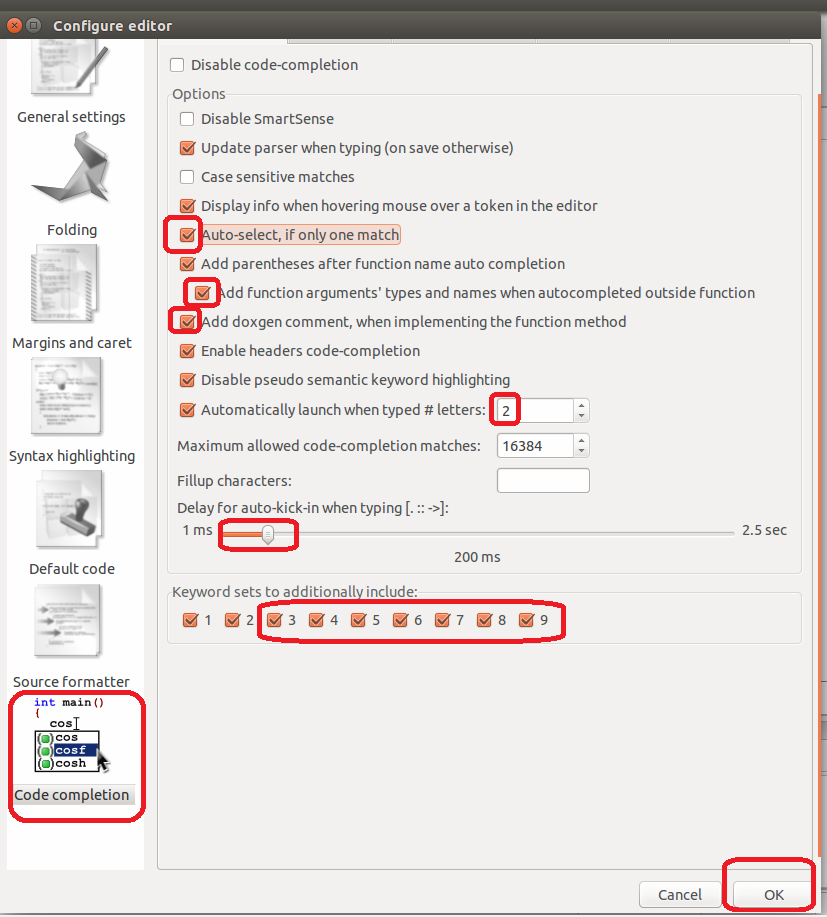
2.程式碼自動提示與補完
3.設定完成後,要使用之前,先將檔案存成 [檔名.c]或是[檔名.cpp]
資料來源:
1.Code::Block 兩三事 設定 快速鍵 editor http://lernju.pixnet.net/blog/post/25761803
1.字體放大
方法(1).按住Ctrl滾滑鼠滾輪,程式代碼的字體會隨你心意變大變小
方法(2).如下圖
2.程式碼自動提示與補完
3.設定完成後,要使用之前,先將檔案存成 [檔名.c]或是[檔名.cpp]
資料來源:
1.Code::Block 兩三事 設定 快速鍵 editor http://lernju.pixnet.net/blog/post/25761803
2017年7月17日 星期一
用shell 在Xubuntu1604 快速安裝 Code::Blocks(C++ IDE)
檔案名稱:CodeBlocksInstall.sh
內容:
#!/bin/bash
add-apt-repository ppa:damien-moore/codeblocks-stable
apt update
apt install codeblocks build-essential
codeblocks
1.將codeblocks加入source.list
$ sudo add-apt-repository ppa:damien-moore/codeblocks-stable
2.更新
$ sudo apt update
3.安裝codeblocks
$ sudo apt install codeblocks build-essential
4.啟動codeblocks
$codeblocks
5.移除codeblocks
$ sudo apt remove codeblocks
$ sudo apt autoremove
資料來源:
1.Ubuntu 16.04安装Code::Blocks http://blog.topspeedsnail.com/archives/4808
內容:
#!/bin/bash
add-apt-repository ppa:damien-moore/codeblocks-stable
apt update
apt install codeblocks build-essential
codeblocks
1.將codeblocks加入source.list
$ sudo add-apt-repository ppa:damien-moore/codeblocks-stable
2.更新
$ sudo apt update
3.安裝codeblocks
$ sudo apt install codeblocks build-essential
4.啟動codeblocks
$codeblocks
5.移除codeblocks
$ sudo apt remove codeblocks
$ sudo apt autoremove
資料來源:
1.Ubuntu 16.04安装Code::Blocks http://blog.topspeedsnail.com/archives/4808
2017年7月14日 星期五
Alice 3 相關資源
資料來源:
01.Alice 3 Lesson 1 (Biped Walking) https://www.youtube.com/watch?v=6SRaGWVNCLc
02.Alice 3 Lesson 2 https://www.youtube.com/watch?v=PafwFLVGimk
03.Alice 3 Lesson 3 https://www.youtube.com/watch?v=-j_iRbPZh_o
04.Alice 3 Lesson 4 https://www.youtube.com/watch?v=J62lixOSIw4
05.Alice 3 Lesson 5 https://www.youtube.com/watch?v=pAYXcngNhiM
06.Alice 3 Lesson 6 https://www.youtube.com/watch?v=QOEiRcR5PIY
07.Alice 3 Lesson 7 https://www.youtube.com/watch?v=c4NgawEitnI
08.Alice 3 Lesson 8 https://www.youtube.com/watch?v=Zwjb7p6s_Kc
09.ICS Alice 3
https://www.youtube.com/playlist?list=PLnjOJyQyE6TDMdOdckXfBsO93SNmm9fzS
10.Alice 3D 動畫程式設計 https://sites.google.com/site/jingebook2/alice-3d
11.Learn about Alice Workshops in a Box
http://ilearningcontent.oracle.com/content/public/oracle_acad/WorkshopInABox/Articulate/Alice/interaction_html5.html
01.Alice 3 Lesson 1 (Biped Walking) https://www.youtube.com/watch?v=6SRaGWVNCLc
02.Alice 3 Lesson 2 https://www.youtube.com/watch?v=PafwFLVGimk
03.Alice 3 Lesson 3 https://www.youtube.com/watch?v=-j_iRbPZh_o
04.Alice 3 Lesson 4 https://www.youtube.com/watch?v=J62lixOSIw4
05.Alice 3 Lesson 5 https://www.youtube.com/watch?v=pAYXcngNhiM
06.Alice 3 Lesson 6 https://www.youtube.com/watch?v=QOEiRcR5PIY
07.Alice 3 Lesson 7 https://www.youtube.com/watch?v=c4NgawEitnI
08.Alice 3 Lesson 8 https://www.youtube.com/watch?v=Zwjb7p6s_Kc
09.ICS Alice 3
https://www.youtube.com/playlist?list=PLnjOJyQyE6TDMdOdckXfBsO93SNmm9fzS
10.Alice 3D 動畫程式設計 https://sites.google.com/site/jingebook2/alice-3d
11.Learn about Alice Workshops in a Box
http://ilearningcontent.oracle.com/content/public/oracle_acad/WorkshopInABox/Articulate/Alice/interaction_html5.html
Xubuntu 16.04 移除OpenJDK 安裝OracleJDK與Alice 3
1.Xubuntu 16.04 移除OpenJDK 安裝OracleJDK
(1)移除OpenJDK
$sudo apt-get remove openjdk*
(2)安裝Oracle Java 8
$sudo add-apt-repository ppa:webupd8team/java
$sudo apt-get update
$sudo apt-get install java-common oracle-java8-installer
(3)設定Java環境變數,如JAVA_HOME$sudo apt-get install oracle-java8-set-default
$source /etc/profile
2.Xubuntu 16.04 安裝Alice 3
(1)下載 Alice3_unix_3_3_0.sh
$wget http://www.alice.org/wp-content/uploads/2017/05/Alice3_unix_3_3_0.sh
(2)變更Alice3_unix_3_3_0.sh為可執行
$chmod a+x Alice3_unix_3_3_0.sh
(3)執行Alice3_unix_3_3_0.sh
$./Alice3_unix_3_3_0.sh
3.安照指示按下確定即可。
4.開啟程式,點選桌面圖示
資料來源:
1.JDK / Installation (Ubuntu) http://imsardine.simplbug.com/note/java/jdk/install-ubuntu.html
2.Alice 3 / Installation (Ubuntu) http://imsardine.simplbug.com/note/alice3/install.html
3.如何從Ubuntu 16.04(Xenial Xerus)中刪除openjdk-8-jdk
https://www.howtoinstall.co/en/ubuntu/xenial/openjdk-8-jdk?action=remove
2017年7月13日 星期四
利用shell,一個動作開啟與關閉遠端掛載 與開關機
1.從192.168.72.134 開啟遠端掛載(192.168.72.140),並開啟phpstorm
檔名:sshfs01.sh
內容:
#!/bin/bash
#sshfs 192.168.72.140/var/www/html/laravel/
if [ -d "/home/webadmin/" ]; then
rm laravel51 -R
mkdir laravel51
sshfs webadmin@192.168.72.140:/var/www/html/laravel/ laravel51
else
mkdir laravel51
sshfs webadmin@192.168.72.140:/var/www/html/laravel/ laravel51
fi
phpstorm
2.關閉遠端掛載
檔名:fusemount01.sh
內容:
#!/bin/bash
fusermount -u laravel51
3.關閉遠端電腦
檔名:sshfs01.sh
內容:
#!/bin/bash
#sshfs 192.168.72.140/var/www/html/laravel/
if [ -d "/home/webadmin/" ]; then
rm laravel51 -R
mkdir laravel51
sshfs webadmin@192.168.72.140:/var/www/html/laravel/ laravel51
else
mkdir laravel51
sshfs webadmin@192.168.72.140:/var/www/html/laravel/ laravel51
fi
phpstorm
2.關閉遠端掛載
檔名:fusemount01.sh
內容:
#!/bin/bash
fusermount -u laravel51
3.關閉遠端電腦
檔名:shutdown192.sh
內容:
#!/bin/bash
#sshfs 192.168.72.140/var/www/html/laravel
ssh webadmin@192.168.72.140
sudo shutdown now
內容:
#!/bin/bash
#sshfs 192.168.72.140/var/www/html/laravel
ssh webadmin@192.168.72.140
sudo shutdown now
訂閱:
文章 (Atom)
在 Windows 10 x64 1909版,使用BAT快速安裝公文系統與人事服務網(自然人憑證)版
相關內容移往 https://skjhcreator.blogspot.com/2021/02/windows-10-x64-1909bat.html
-
後篇: 只要用滑鼠點兩下,開啟五種不同瀏覽器瀏覽特定的網頁 讓Chrome瀏覽器自動開啟網頁 檔名:ChromeStart.bat 內容: @echo off start "C:\Program Files (x86)\Google\Chrome\A...
-
在國民中小學電腦教室實施教學,最大的兩個問題是 一、如何將教師的檔案給學生,或是學生如何取得教師的檔案? 二、學生要交作業,要如何交給老師? 現在利用HFS (Http File Server),來解決這些問題。 1.HFS下載與說明: 下載處 ,下載完後,解...
-
要利用Code::Blocks來完成APCS考試,又不想背太多程式碼。希望考試時,檢測環境能夠出現字體放大、程式碼自動提示與補完。所以就設定Code::Blocks。 1.字體放大 方法(1).按住Ctrl滾滑鼠滾輪,程式代碼的字體會隨你心意變大變小 方法(2)...